
SparKo user guide
SparKo is a Windows tone librarian for Positive Grid Spark amps. It keeps your tones as plain files, sends them to the amp over Bluetooth, and (with Pro) lets you tune the amp live and ask an AI for new tones.
1. Install
Requirements: Windows 10 (1809 or newer) or Windows 11, 64-bit; a Bluetooth 4.0+ adapter (built in on most laptops); a Positive Grid Spark 2 or Spark GO (the Spark 40 and Mini should behave like the GO but are untested).
Spark GO: the GO's firmware occasionally stops short on a preset read; SparKo detects this and reads the slot again, so some slots take a couple of seconds longer to appear. Nothing damaged is ever sent to the amp.
- Download the zip from the Download section of the home page and unzip it anywhere, for example
C:\SparKo. No installer. - Run
SparKo.exe. The first time, Windows may show "Windows protected your PC": click More info, then Run anyway. - On first launch SparKo creates a
Spark_Libraryfolder next to the exe with a starter set of tones. Everything you add lives there.Back up that folder to keep your tones; copy it to a new PC to move them.
Portable: apart from a small settings entry in the Windows registry, the app writes nothing outside its own folder. Delete the folder and it is gone.
Full screen. SparKo runs in a resizable window; press Alt+Enter to switch to full screen and again to come back.
2. The screen
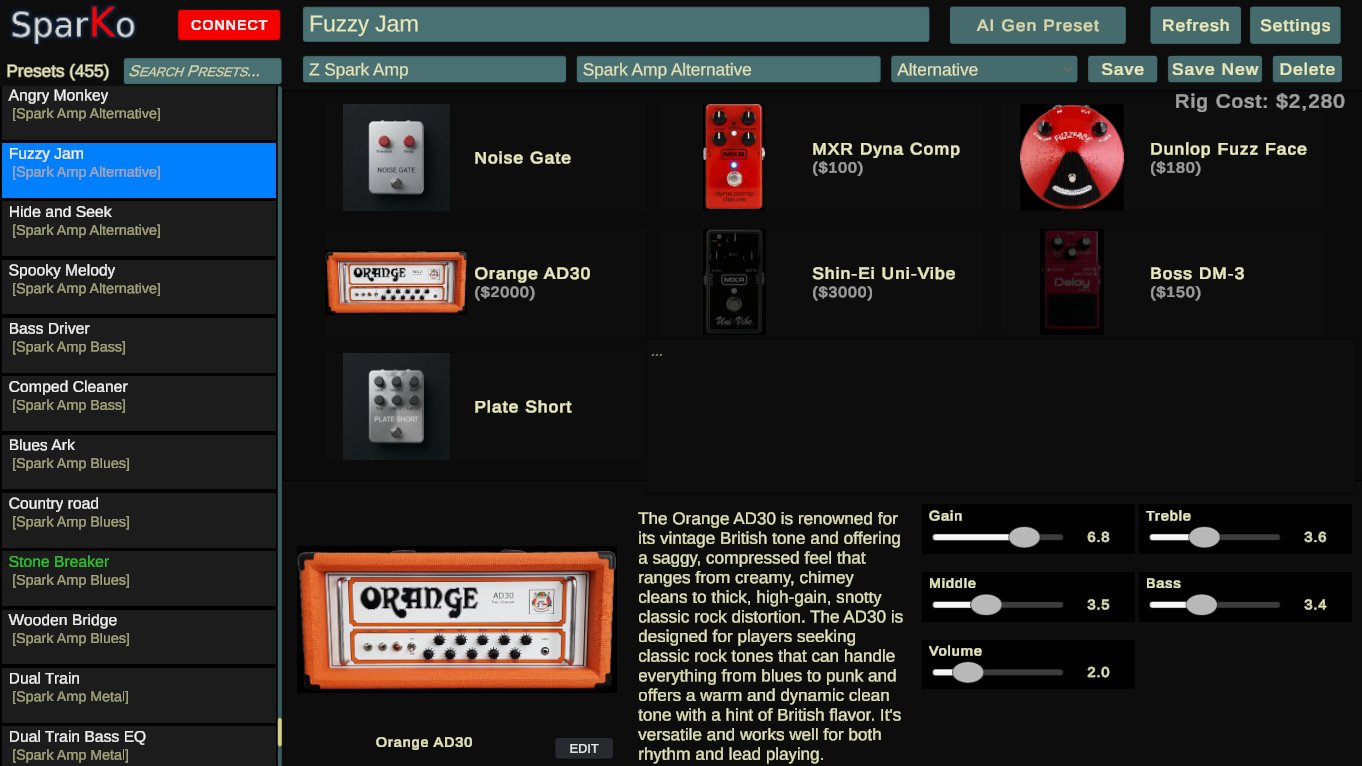
- Left panel: the preset list. Search box at the top; double-click the Presets title to switch between all presets and your setlist.
- Top bar: the current tone's name, band, album and genre, plus Save, Save New (asks for a name and saves a copy) and Delete.Refresh rescans the library folder. Settings and AI Gen Preset open their panels. CONNECT (red when the amp is not connected, green when it is) opens and closes the amp panel, same as the Esc key. Most actions have a key, shown in brackets below and listed in Keyboard shortcuts.
- Signal chain: the amp and pedals of the current tone, with the rig's real-world cost. Click one to edit its knobs; double-click it to swap it for another model.
- Bottom: the selected pedal's picture, description and knobs (drag the sliders), with an ON / OFF switch.
3. Library
Editing a tone. Change knobs, swap pedals, rename, re-tag, then press Save. Save New asks for a name and saves a copy, leaving the original alone; the list scrolls to the new tone. Right-click a tone for Delete Preset, or Delete all visible presets to remove everything the list currently shows (after a confirmation).
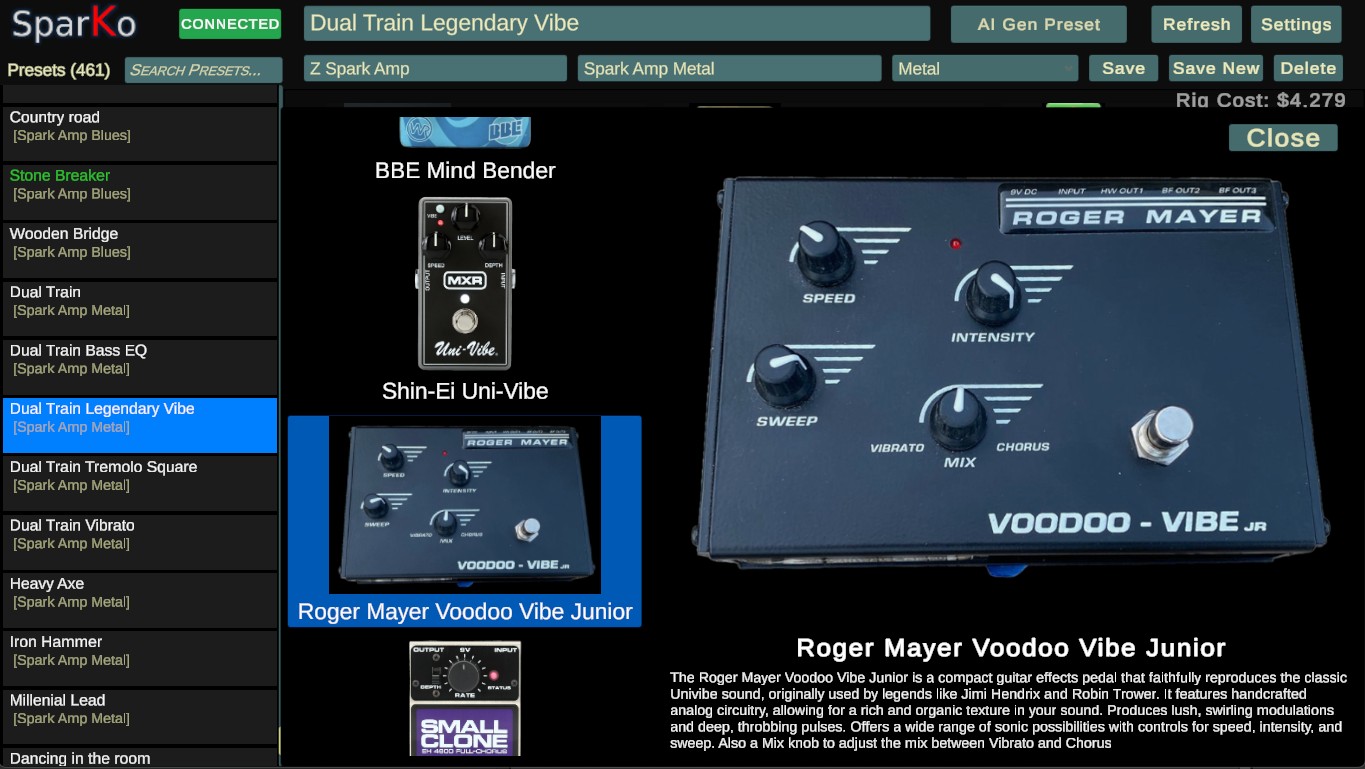
Swapping a pedal or amp. Double-click it in the signal chain. A gallery of every model in the same category opens, with a preview picture and description; double-click a model (or select it and press Select) to put it in the chain.
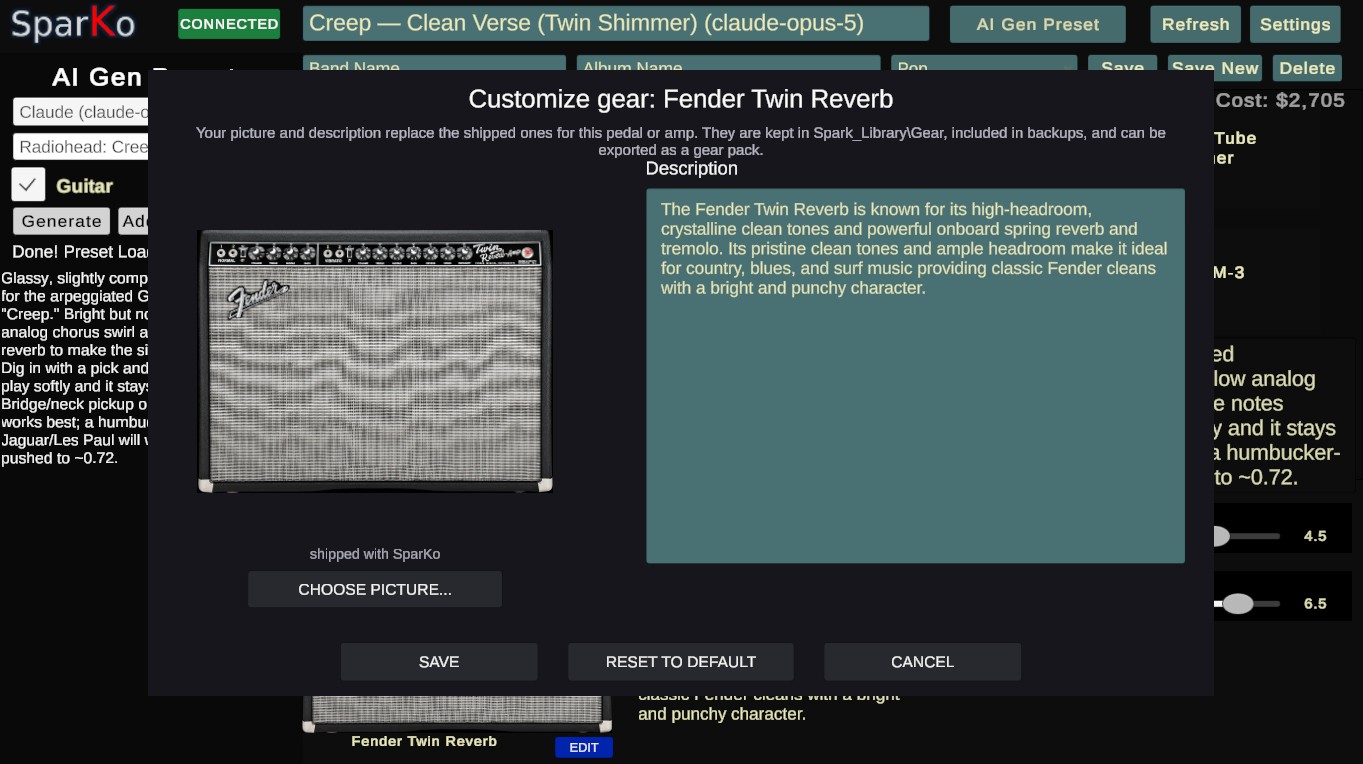
Customizing gear. Press EDIT next to the selected pedal or amp's name to give it your own picture (PNG or JPEG) and description. Your changes live in Spark_Library\Gear, layered over the pictures that ship with SparKo, so they survive updates, go into backups and can be shared as a gear pack. RESET TO DEFAULT in that dialog removes one customization; Settings → Reset gear to defaults removes them all.
Setlists. Right-click any preset for Add to Setlist / Remove from Setlist, or add everything the search currently shows in one go. Double-click the Presets title to view the setlist.
Right-click menu. Besides setlist items: Send to Amp (play now), Push to Amp slot N, Hide Tone / Hide all visible tones, and Delete Preset.
Hiding tones. Hidden tones stay in the library but leave the list; useful for AI drafts you are not ready to delete. Settings → Show Hidden Tones lists them in grey, where the right-click menu offers Unhide Tone and Unhide all visible tones.
Genres. The genre dropdown in the top bar files a tone into a genre folder. Settings → Manage genres adds your own (for example "Instruments") or removes ones you do not use; tones from a removed genre move to Uncategorized.
Where tones live. Each tone is a folder under Spark_Library\preset_backup\<genre>\ holding a preset.json in the same format the Spark app uses. Tags and setlists are in user_tags.json.
4. Amp connection
- Turn the amp on. Make sure the Positive Grid app on your phone is not connected to it: a Spark accepts one Bluetooth controller at a time.
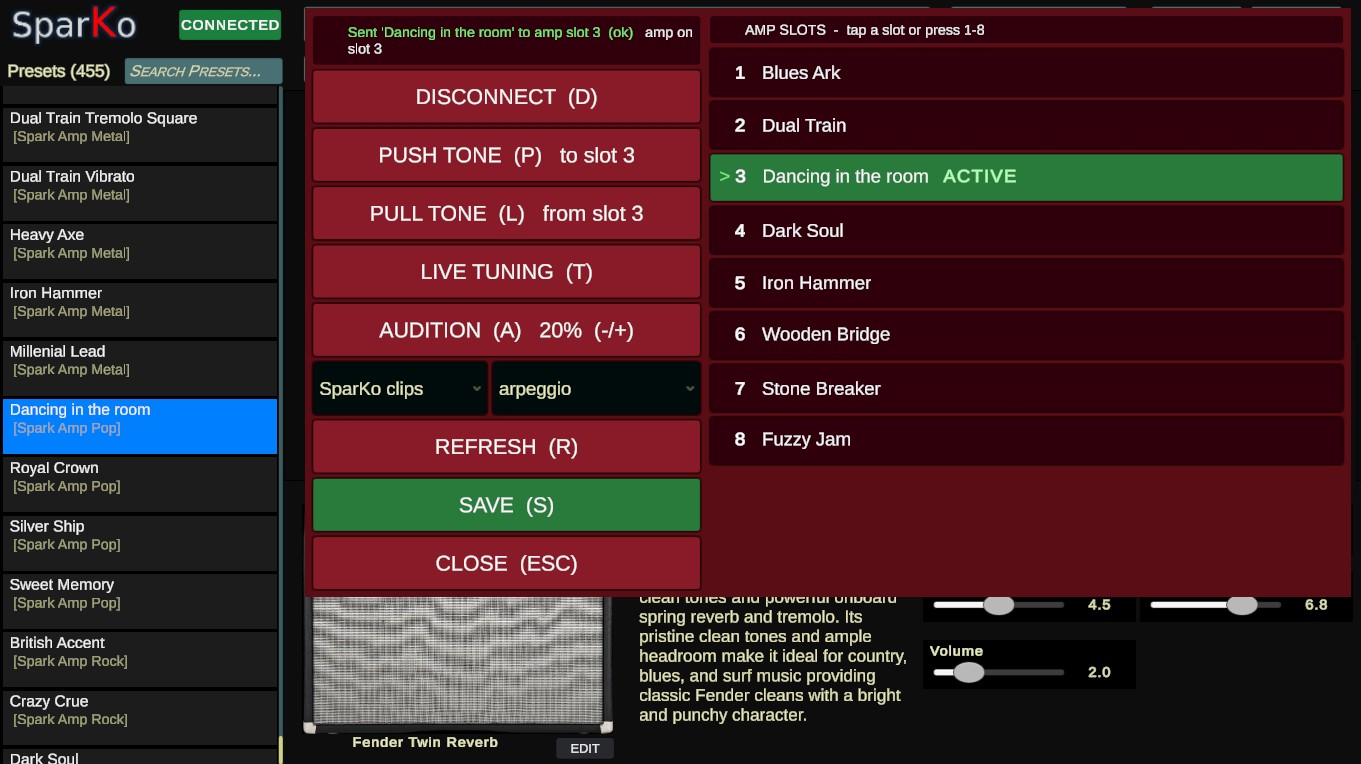
- Click CONNECT (or press Esc) to open the amp panel, then CONNECT (C) inside it. The top-bar button shows dots while SparKo scans for the amp and turns green once connected. The panel shows the 8 slots (4 on older Sparks) with the name of the tone in each; the one the amp is playing is marked ACTIVE.
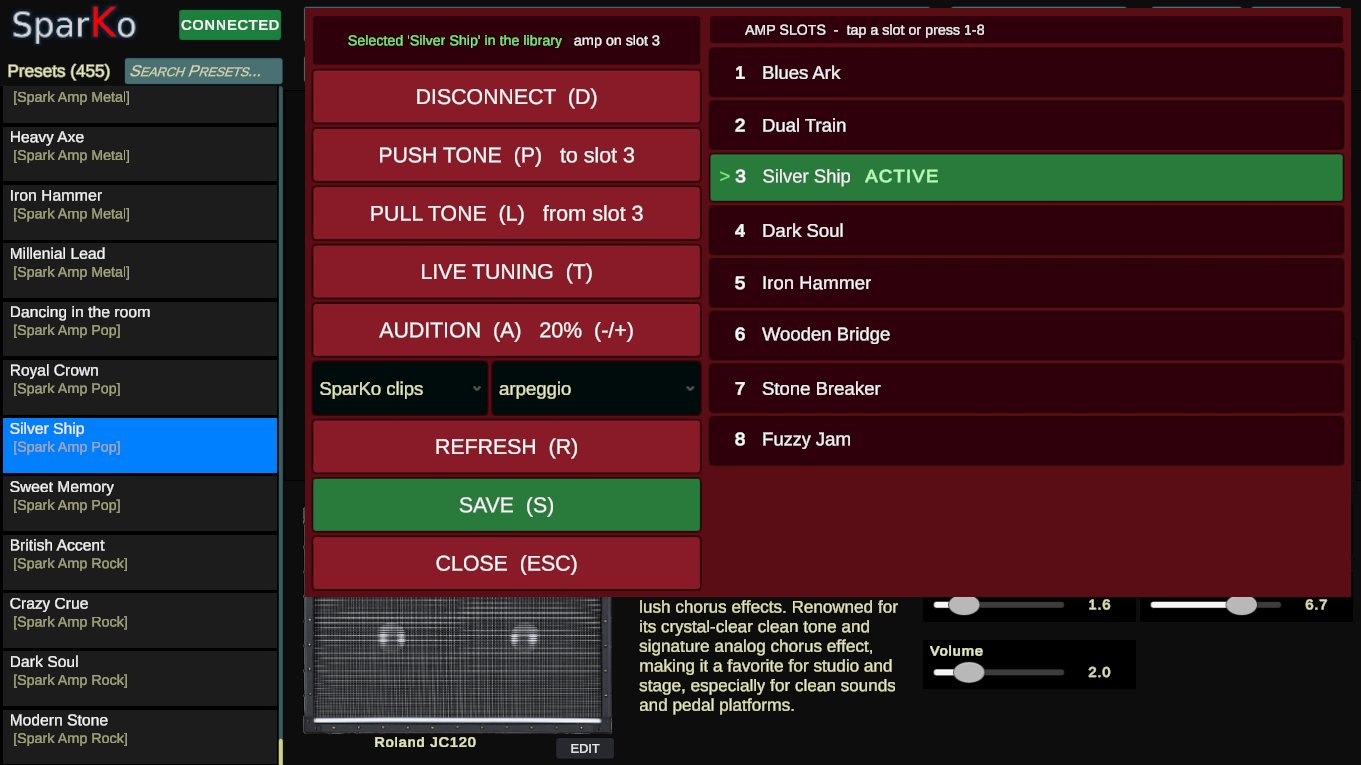
With the panel open:
- Tap a slot (or press 1-8) to switch the amp to it, exactly like the amp's own buttons.
- PUSH TONE (P) writes the tone open in SparKo into the active slot. Send to Amp (play now) in the right-click menu plays a tone without saving it to a slot.
- PULL TONE (L) reads the active slot into SparKo: if that tone is already in your library it is selected and updated with the amp's knob values, otherwise it is added under Uncategorized. Use it to capture tones you built on the amp or in the Spark app.
- REFRESH (R) re-reads the slot names. DISCONNECT (D) releases the amp so the phone app can connect again.
- Knobs on the amp. After a PUSH or PULL, SparKo holds the tone the amp is playing, so turning a knob on the amp itself moves the matching knob in SparKo (the amp's light flashes to show an unsaved change). Press SAVE (S) and SparKo writes the tone to that slot and to your library, the same as holding the amp's preset button, so there is no need to pull it back first. Opening a different tone in SparKo, or changing slot on the amp, ends this link; PUSH to put a new tone on the amp.
- AUDITION (A) (Pro) plays a dry guitar clip out of your PC so you can hear the amp's current tone without picking up the guitar; press again to stop. It plays the clip through once and keeps playing while you switch to Live Tuning. FOLDER and CLIP pick what plays: the built-in clips (strum, arpeggio, riff, chug, lead, funk, drop-D strum), or your own; a SONG dropdown appears between them when the folder has subfolders. - and + set the level in 2 dB steps, from -50 dB up to +12 dB of boost; start low. SparKo remembers the level separately for each amp (a Spark GO needs far more than a Spark 2). It needs a cable from the PC's headphone or line output into the amp's guitar input (3.5 mm to 1/4 inch); set the PC's own volume once and leave it (full is fine, the audition level does the adjusting). Your own clips go in
Spark_Library\Auditionas MP3, OGG or WAV, in subfolders nested as deep as you like (Audition\Band\Song\Lead.mp3gives FOLDER "Band", SONG "Song" and clips Lead, Rhythm, Solo…); the folder is re-read every time the panel opens, the file name is the clip name, and silence at the start, end and between sections is skipped automatically. A guitar track exported from Guitar Pro or your DAW with a clean, effect-free sound is ideal: you hear the exact song through the tone you built for it.
5. Live Tuning (Pro)
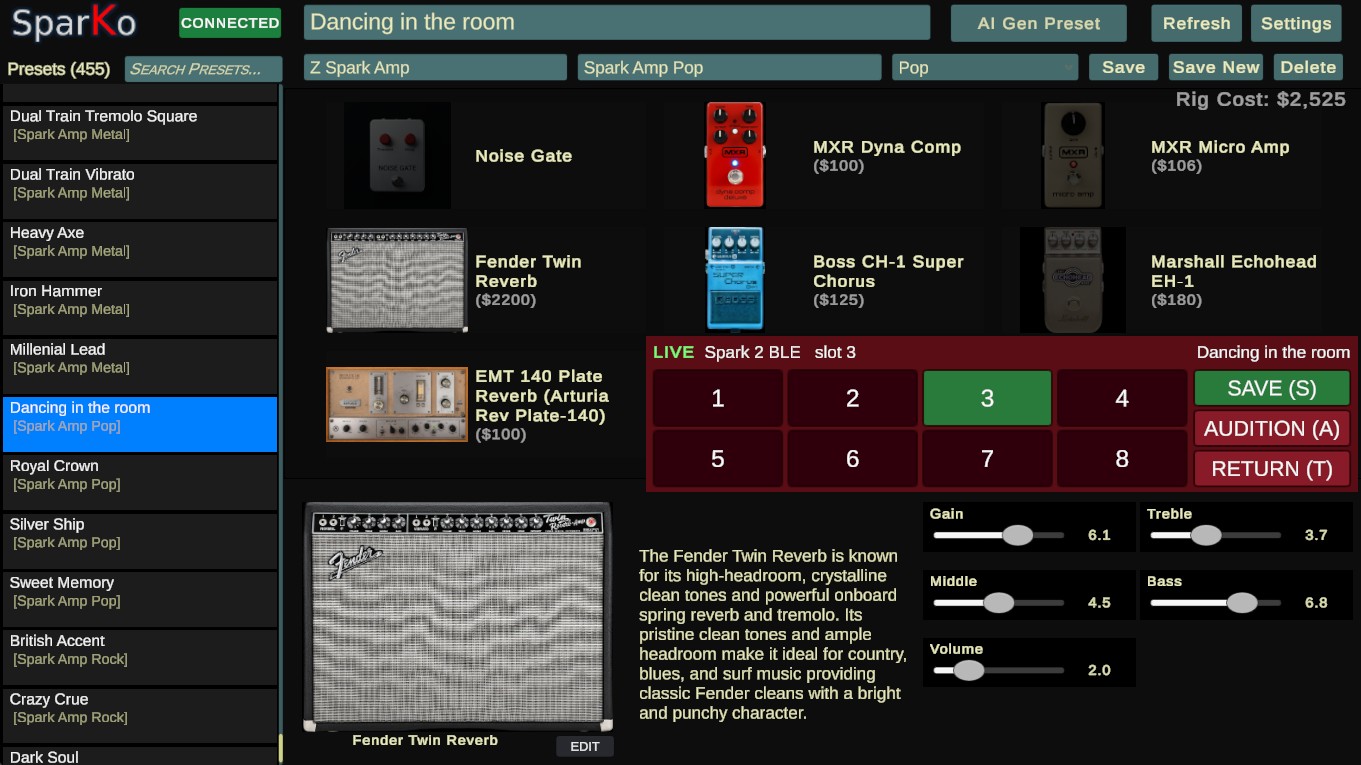
Press LIVE TUNING (T). SparKo now mirrors the amp: every knob you drag, every pedal you switch on, off or swap is heard on the amp immediately, and nothing is saved until you say so. The compact live panel shows the slot grid (1-8 to switch) with SAVE (S), which writes the tone to both the amp slot and your library, and RETURN (T) to leave without saving. Load a different preset from the list while live tuning and the amp follows.
6. AI tones (Pro)
SparKo can ask an AI model to design a tone from a description ("the lead sound on Comfortably Numb", "warm jazz clean with a touch of chorus"). It uses your own account with the AI provider, so you need an API key from one of: OpenAI, Anthropic (Claude), Google (Gemini), xAI (Grok) or DeepSeek. Keys are pay-as-you-go with the provider; a tone costs a fraction of a cent.
- Open Settings and click the button for your provider (for example CLAUDE KEY). A text file opens.
- Replace the x's on line 1 with your key, save the file, close it. The lines below list the models the file offers; the ones ending in
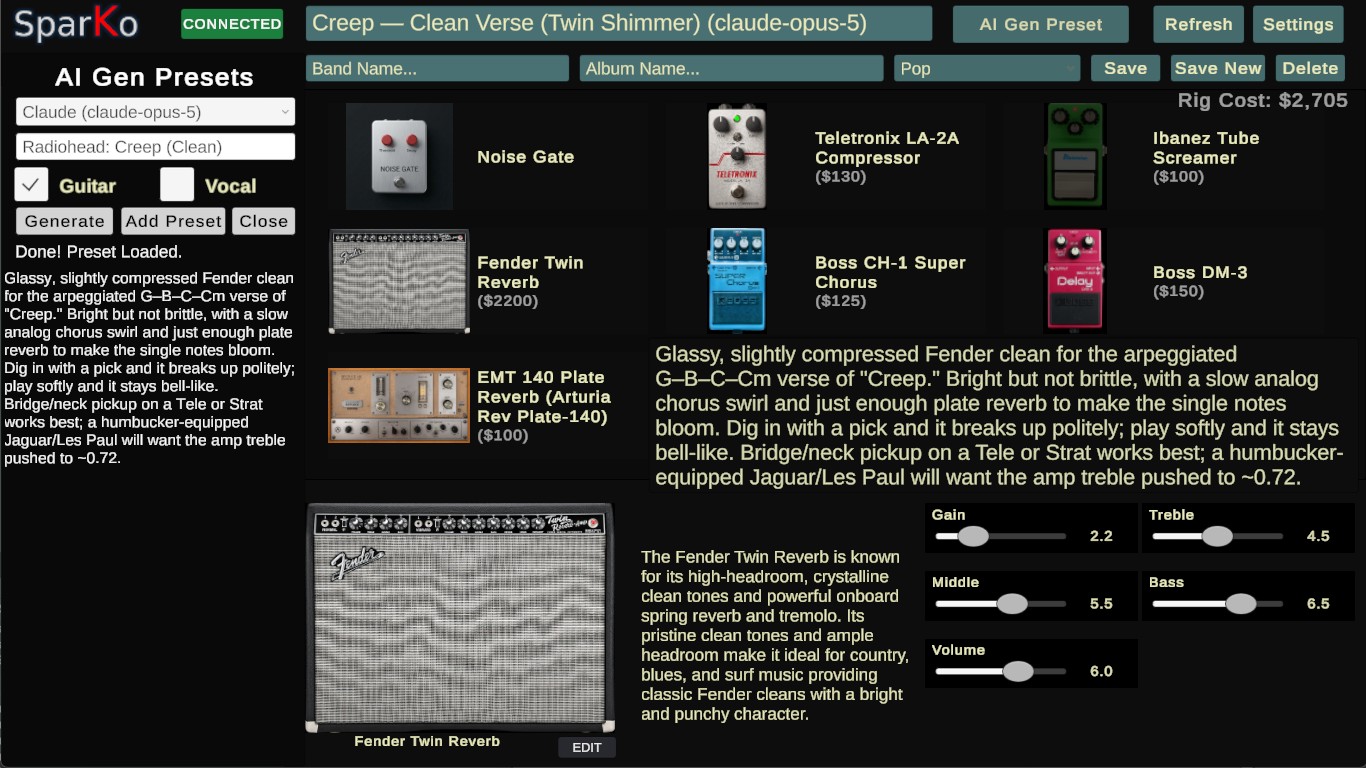
*appear in SparKo's dropdown, so move the star to pick other models. - Open AI Gen Preset, choose the provider/model, describe the sound and press Generate. The tone loads into the editor for you to try and tweak; Add Preset saves it to the library. Tick Vocal to also get a vocal-channel suggestion for Spark models with a mic input.
Your keys stay in Spark_Library\api_keys\ on your PC and are sent only to that provider. SparKo has no server in the loop.
7. Settings
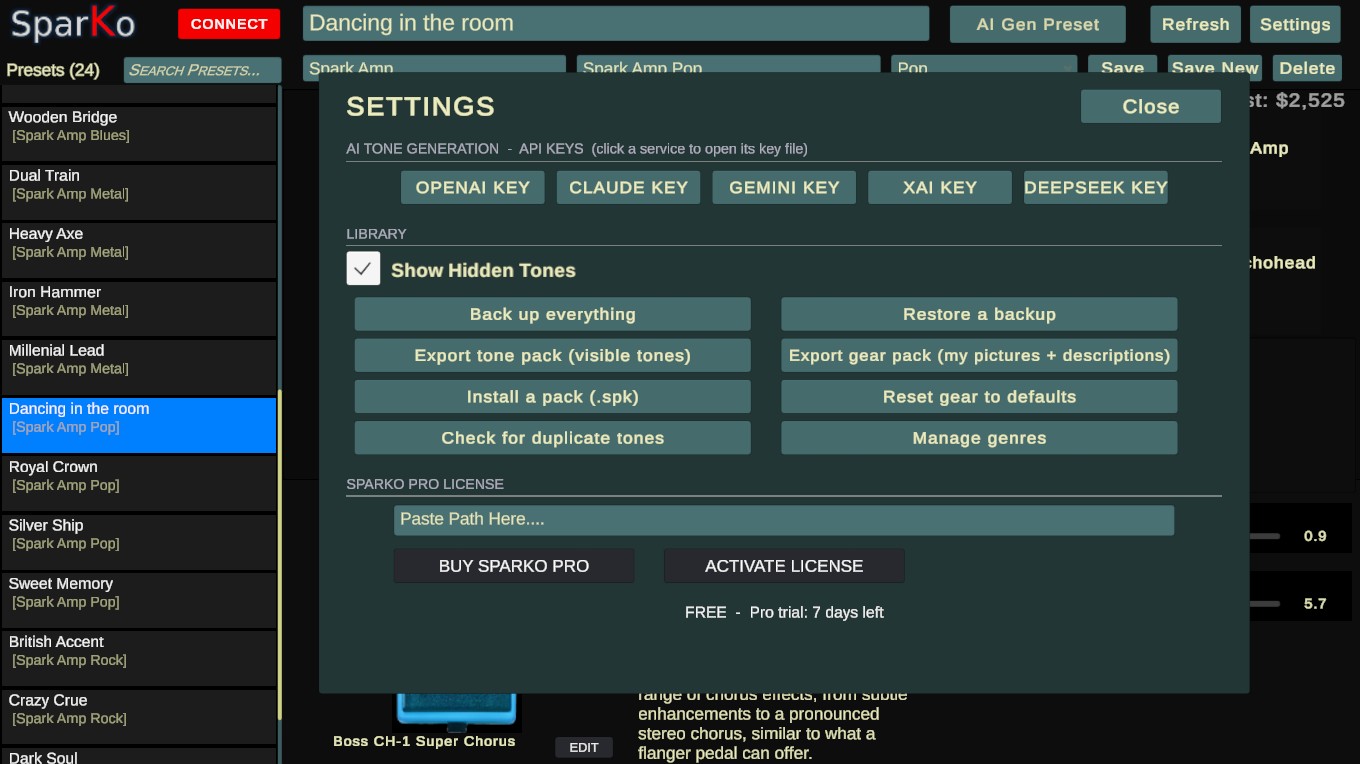
- API keys: one button per AI provider, see above.
- Show Hidden Tones: lists hidden tones in grey so you can unhide them.
- Back up everything / Restore a backup: a backup is one file (
.spkb) holding your wholeSpark_Library: tones with their tags, setlist, hidden list and genres, gear customizations, API key files and audition clips. It is saved underSpark_Library\exports, next to your packs, and Restore and Install start their file dialogs there. Restore picks a backup and puts it all back, replacing what is there. This is also how you carry everything into a new SparKo version: back up, install the new version, restore. - Export tone pack (visible tones) / Export gear pack / Export audition pack / Install a pack: a SparKo pack (
.spk) is a shareable bundle. A tone pack holds the tones currently shown in the list (filter by band, genre or setlist first) with their band, album and description tags; a gear pack holds your custom pedal pictures and descriptions; an audition pack holds your own audition clips with their folders. All three ask for a name, author and description and are written toSpark_Library\exports. Install a pack takes any kind (and older.tpktone packs) and adds what is new, asking before it replaces anything you already have. - Reset gear to defaults: removes every custom pedal/amp picture and description (export a gear pack first if you want to keep them).
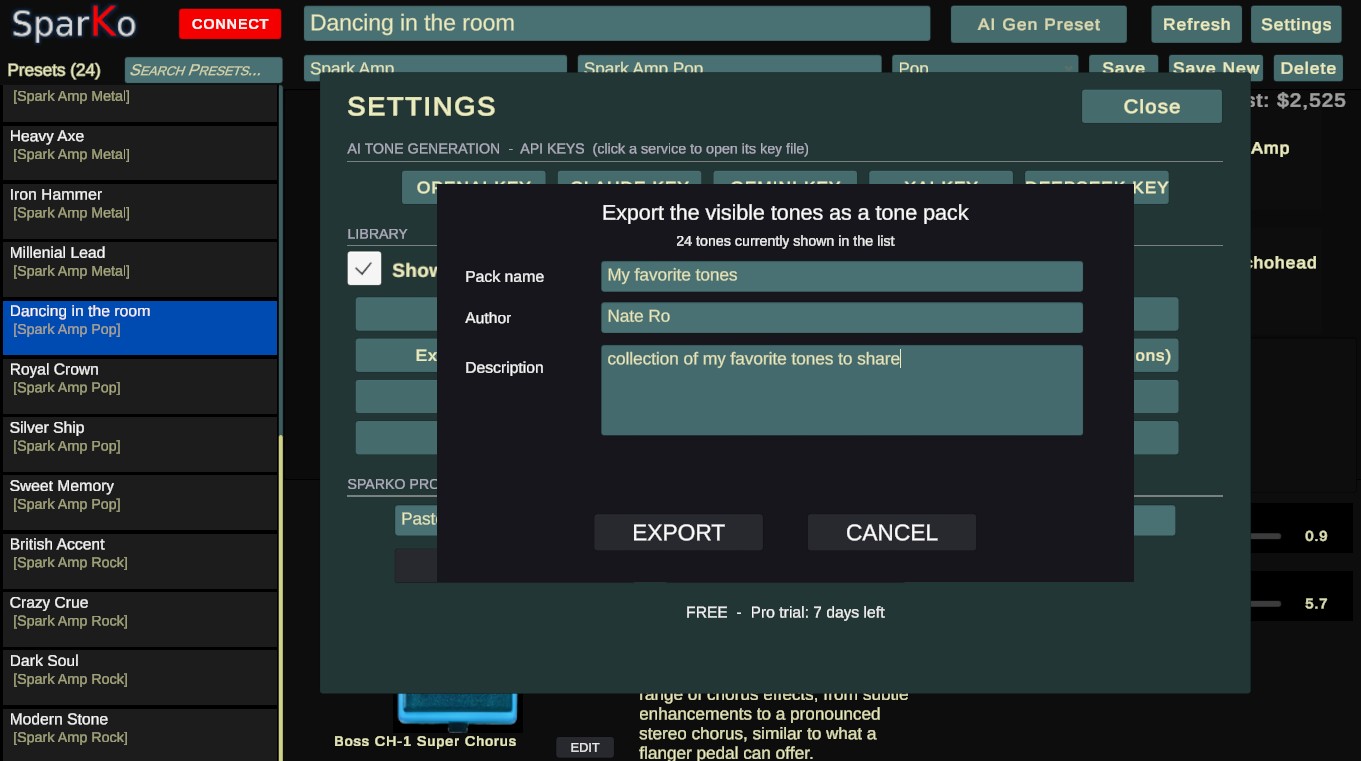
- Check for duplicate tones: finds presets stored more than once (same id in two folders) and, if you confirm, keeps the most recently saved copy of each.
- Manage genres: add and delete genres.
- SparKo Pro license: see below.
8. Free, trial and Pro
Everything in the library and the amp connection is free. Live Tuning and AI tones are Pro features. A new install gets a 14-day Pro trial; it starts the first time SparKo runs with an internet connection (the trial is tracked on our server, so the PC needs to be online now and then while it runs). Settings shows the days left.
With a license activated the SparKo title in the top-left becomes the SparKo PRO logo; during the trial it stays as the normal logo.
A Pro license is a one-time purchase and works on up to 2 computers. Paste the key from your purchase page or email into Settings and press ACTIVATE LICENSE. To move it, press DEACTIVATE THIS COMPUTER on the old machine first. Lost the key? sparko-app.com/recover emails it again. SparKo re-checks the license online about every two weeks; it keeps working offline in between.
9. Keyboard shortcuts
| Key | Does |
|---|---|
| Esc | Open / close the amp panel |
| C / D | Connect / disconnect the amp |
| P | Push the current tone to the active slot |
| L | Pull the active slot into the library |
| T | Enter / leave Live Tuning |
| R | Refresh the slot names |
| A | Audition (Pro): play / stop the dry guitar clip through the amp (amp panel or live tuning open) |
| S | Save the current tone to the amp slot and the library (amp panel or live tuning open) |
| 1-8 | Switch the amp to that slot (amp panel or live tuning open) |
| Up / Down | Move through the preset list |
| Alt+Enter | Full screen on / off |
Shortcuts are ignored while you are typing in a text field.
10. Troubleshooting
"Connect failed" / amp not found. Check Bluetooth is on in Windows, the amp is powered and within a few metres, and the Positive Grid app is disconnected (close it on the phone). If the amp was connected to something else moments ago, turn it off and on again: a Spark's Bluetooth can get stuck after rapid reconnects. Try C again.
"Bridge exited". The small helper program that talks Bluetooth (SparKoBridge.exe, inside the SparKo folder) could not start. Antivirus quarantining it is the usual cause; restore it or re-extract the zip.
Pro features say "trial ended" or "go online". The trial needs one internet connection to start, and must reconnect at least every 3 days while it runs. Buying a license removes the limit.
Amp firmware. SparKo talks to the amp with the same Bluetooth protocol the Spark app uses and is tested with Spark 2 firmware 2.7.2. If a future firmware update from Positive Grid stops SparKo connecting, we will update SparKo; until then the amp's firmware can be reinstalled with Positive Grid's USB firmware updater. The firmware version your amp reports is written to Player.log at connect; include it in a support message.
Tones missing after moving the folder.SparKo reads only from Spark_Library next to the exe; move the whole folder, not just the exe.
Getting help. Email the address on the support page and attach %USERPROFILE%\AppData\LocalLow\nateRo\SparKo\Player.log, which records what happened in the session.